PDF Page
The PDF Page component lets you embed an existing PDF document into your template and display one page at a time. This is ideal for working with existing PDF forms (such as application forms, tax forms, and other documents) where you want to overlay dynamic text, images, QR codes, or fillable form fields on top of an already-designed PDF.
To add a PDF Page component, locate PDF Page in the tool panel and drag-and-drop it to the desired position within the template.
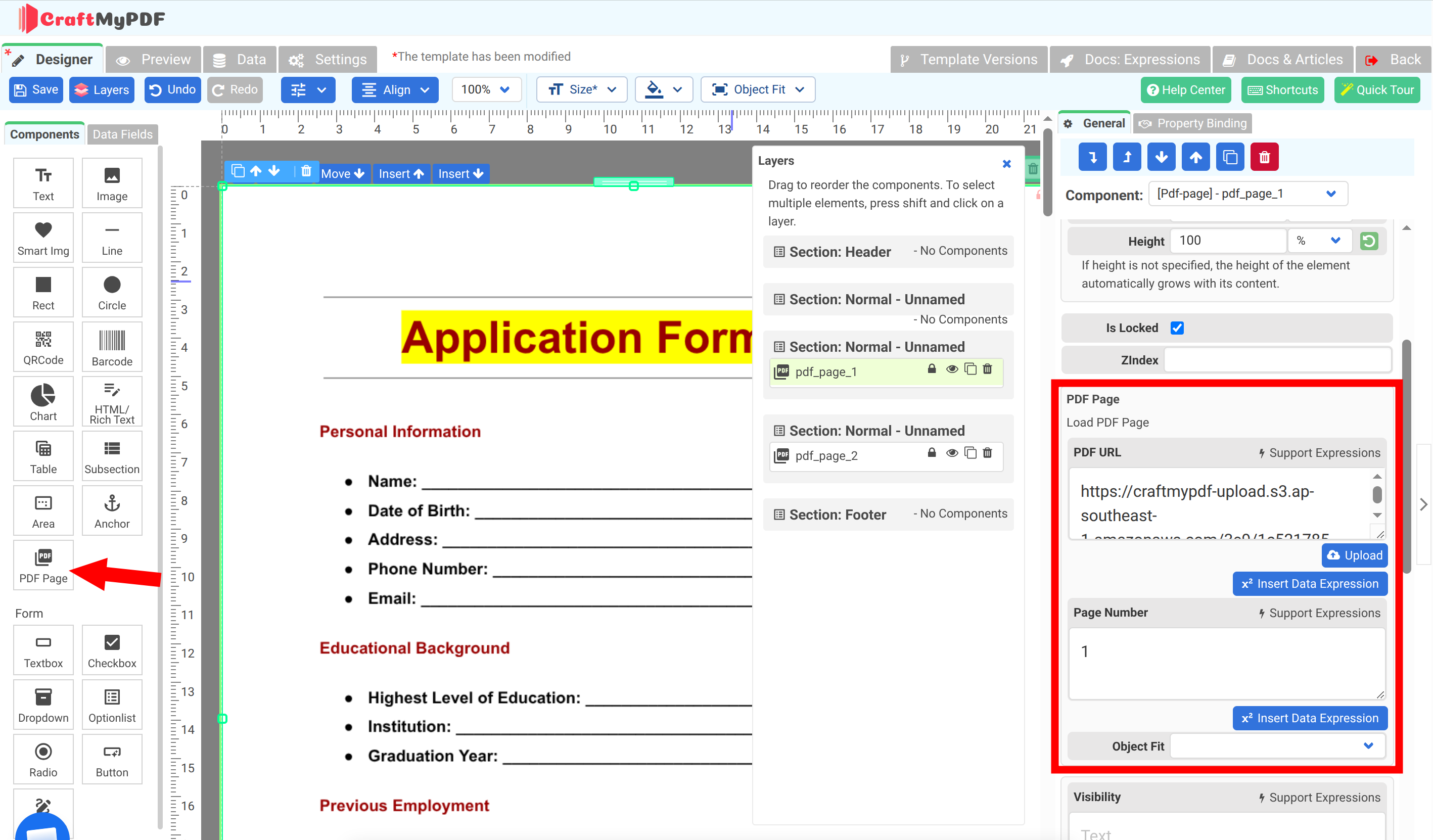 PDF Page Component
Properties of PDF Page component
- PDF URL: The source PDF to load. You can either Upload a PDF file from your local system or provide a direct URL to a PDF hosted online. This property supports expressions, so you can use Insert Data Expression to load a PDF dynamically from your JSON data.
- Page Number: The page of the source PDF to render in this component (one page per component). This property also supports expressions via Insert Data Expression.
- Object Fit: Determines how the PDF page is resized to fit the component's container.
- Height: The height of the component. If the height is not specified, the height of the element automatically grows with its content.
- Visibility: Controls whether the component is shown. It supports expressions, so you can conditionally display the page.
Create Template From PDF
Instead of adding PDF Page components one by one, you can use the Create Template From PDF option in the dashboard. Upload your PDF and CraftMyPDF will automatically create a template with multiple PDF Page components (one per page) and detect the form fields, so you can immediately start binding data and customizing the layout.
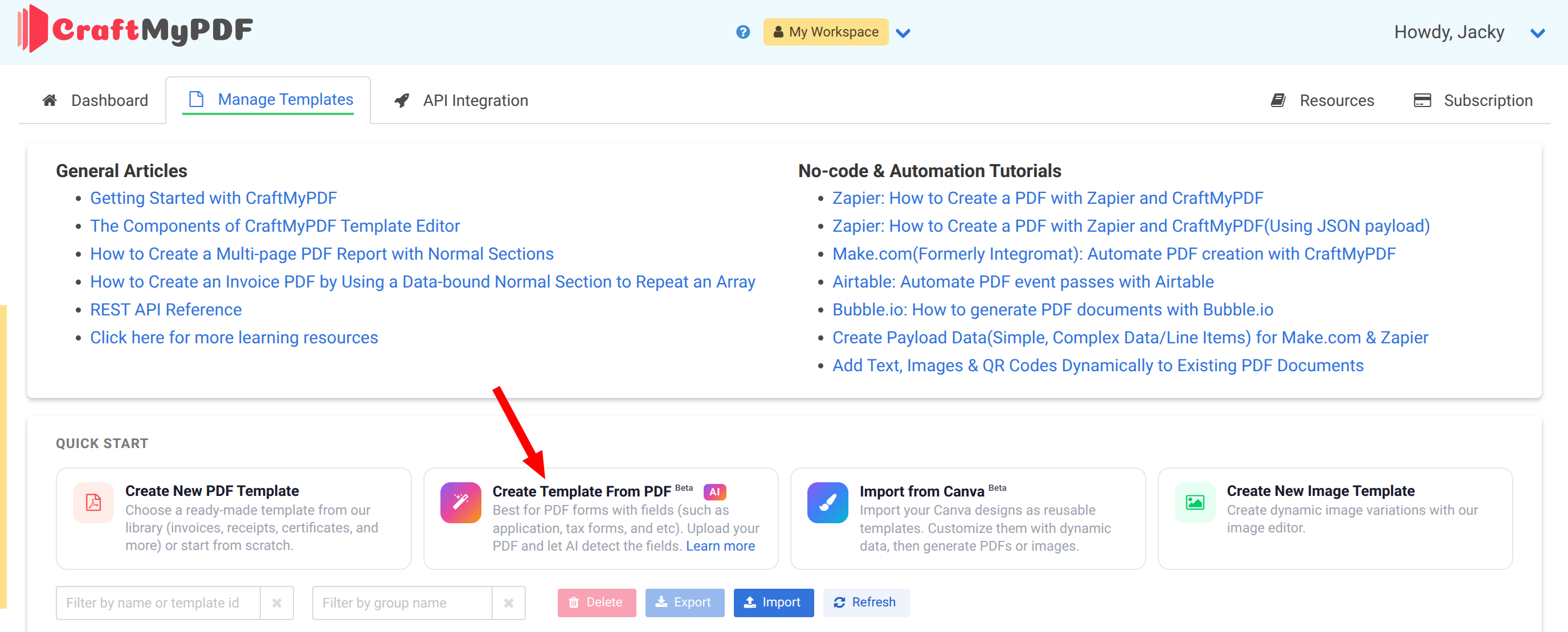 Create Template From PDF